The Problem With Preset Stock Scanners
Preset stock scans are fast, but someone else chose the definitions and everyone sees the same list. See what presets hide and how to make one your own.
Almost every scanning platform ships with a set of preset stock scans: Top Gainers, Unusual Volume, New Highs, Gap Up. You click one and a list appears. For a first look at the market that is useful, and it is how most traders start.
The trouble begins when a preset scan becomes the thing you trade from. A preset is someone else's answer to a question you never got to ask. This post covers what a preset decides on your behalf, why two presets with the same name can return different stocks, and how to turn a preset into a scan that fits the way you trade.
What is a preset stock scanner?
A preset scan, sometimes called a predefined or prebuilt scan, is a scan the vendor wrote in advance. You do not set any conditions. You pick a name from a list and the platform runs the logic behind it.
Presets are common because they remove the blank page. Finviz offers a list of signals such as Top Gainers and Unusual Volume in its screener. Trade Ideas describes a channel bar with more than 40 preconfigured scans. StockCharts runs a library of predefined scans. They all solve the same problem: a new user can see results in one click.
A preset makes five decisions for you
The name on the button is short. The logic behind it is not. Take "Unusual Volume" as an example.
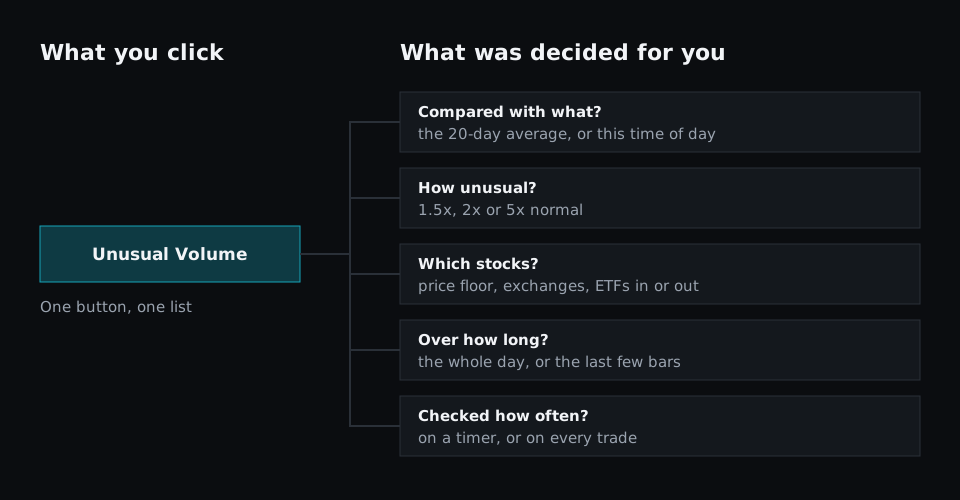
Before that button can return a list, someone had to decide:
- Compared with what? Volume is only unusual against a baseline. That could be a 20-day average, a 3-month average or the normal volume for this time of day.
- How unusual? Somebody picked the threshold, or picked how many of the top results to show.
- Which stocks? There is usually a price floor, a list of exchanges, and a choice about ETFs and thinly traded names.
- Over how long? The whole session so far is a different question from the last five minutes.
- Checked how often? Some presets refresh on a timer and some update on every trade.
Each of those is a reasonable choice. The point is that they are choices, and they were made for an average user, not for you.
The same preset name can mean different things
Because each vendor makes those decisions separately, the same name does not carry the same definition from one platform to the next. Relative volume is the clearest case:
- Finviz describes relative volume as current volume divided by the 3-month average volume.
- Trade Ideas compares today's volume with the stock's average volume for the same time of day.
- TradingView offers a relative volume at time measure that compares volume at a moment with its average at similar past moments.
All three are sensible, and they answer different questions. A stock can be far above its usual volume for 09:45 and still well below a full day's average. Here is what that does to a list.
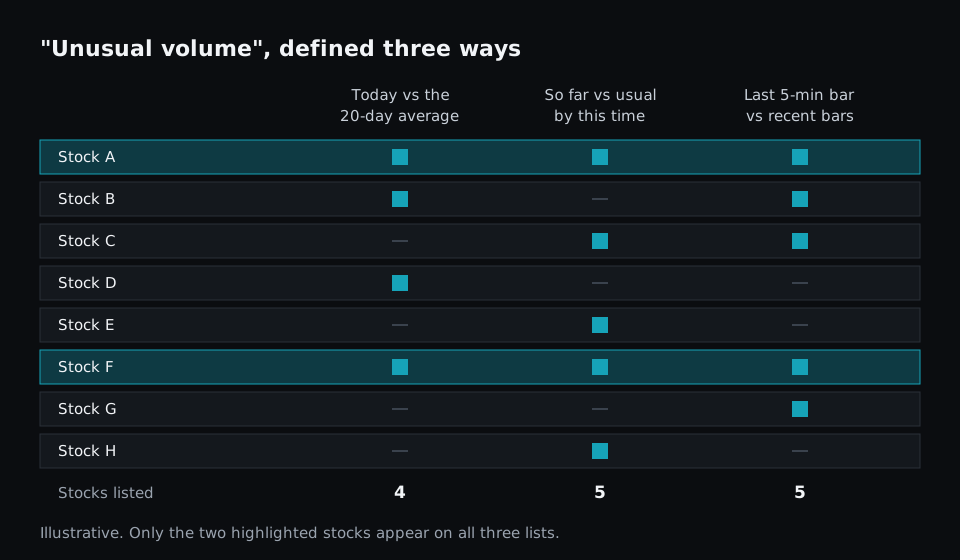
The data in that chart is illustrative, but the effect is real. If you do not know which definition your preset uses, you do not know what the list is telling you. You only know that a stock is on it.
Four problems with trading from preset scans
You cannot see the rule
Some vendors publish the logic. StockCharts shows the scan code for its predefined scans, although it notes the official results also apply extra filter clauses. Many others give a one-line description and nothing more. Without the rule, you cannot tell a stock that barely qualified from one that qualified by a wide margin, and you cannot tell why a stock you expected is missing.
Everyone sees the same list
A preset returns the same symbols to every user who clicks it. That is fine for awareness. It is less useful as an edge, because the stocks at the top of a popular gainers list are already the most watched names of the day.
It does not know how you trade
A preset has no idea that you only trade the first hour, avoid stocks under $2, or want the gap to still be holding. So the list includes plenty of stocks you would never take, and you do the real filtering by eye, one chart at a time.
It cannot change with the market
A threshold that works in a quiet market returns hundreds of rows in a volatile one. With a preset you cannot move the number. You can only scroll further.
When preset scans are enough
Presets are not a mistake. They are good at three things:
- Awareness. A quick look at top gainers and losers tells you what kind of day it is.
- Learning. Seeing what a named setup returns is a fast way to learn what that setup looks like on a chart.
- A starting point. A preset that is nearly right saves you from writing the common parts yourself.
If you build watchlists after the close or trade a few large names, presets may be all you need. Our comparison of free and paid stock screeners covers where simple tools do the job.
How to turn a preset into your own scan
The useful move is to treat a preset as a first draft. Keep the part that is right and add the parts that describe your trade.
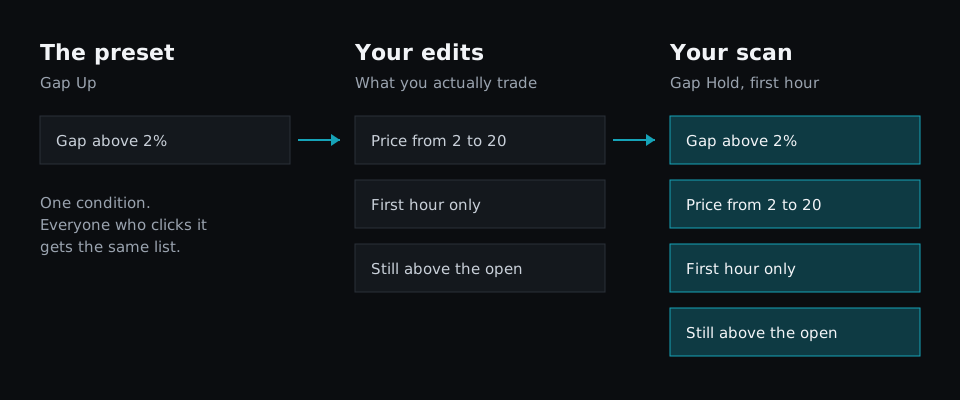
Three questions get you most of the way:
- What is the preset actually testing? Find the definition, or rebuild it yourself so you know.
- Which results do I always skip? Each reason you skip a stock is a condition the scan is missing.
- When does it matter? Add the time of day you trade. Our post on time-based conditions explains why this one change removes so much noise.
Every scan in Fastur has a Code view, so the rule behind it is always visible and editable. The three edits from the diagram are three short named conditions added to the preset's rule:
logicblock InRange = trade.last >= 2 and trade.last <= 20
logicblock FirstHour = clock.time > 34200 and clock.time < 37800
logicblock Holding = trade.last > d1.open
InRange is the price range, FirstHour limits the scan to 09:30 to 10:30 Eastern, and Holding checks that the stock is still above its open. The gap condition stays as it was. The rule is checked each time a stock trades, so a stock appears when all four are true and leaves when one stops being true.
The same approach settles the "unusual volume" question. Instead of trusting a label, you write down which definition you mean and give it a name: today's volume so far against the 20-day average, or the last 5-minute bar against the bars before it. Once each has a name, you can use either one, or both, and you always know which. The scripting docs list the fields and windows you can use.
You do not need to write the code by hand. You can describe the change in plain English, such as "only stocks between $2 and $20 in the first hour", and the assistant edits the script and shows you the change before you apply it.
What to look for in a scanner's presets
When you compare tools, the number of presets matters less than what you can do with one. Check four things:
- Can you see the rule behind each preset? A description is not a definition.
- Can you edit it? A preset you can change is a template. One you cannot is a fixed list.
- Can you save your version? Your edits should become your own scan, not reset the next day.
- Is it checked continuously? A preset that refreshes on a timer can miss moves between refreshes, which we covered in why "real-time" stock scanners are often misleading.
The takeaway
Preset stock scanners answer a general question well: what is moving? They cannot answer the specific one: what is moving in the way I trade, right now? Use presets to see the market and to get a first draft. Then open the rule, change it until it describes your setup, and save that version. For the full checklist, see the essential features of a modern stock scanner.
